As the end of the year approaches, now is the ideal time to review and refresh your LinkedIn profile. Check out our guide below to learn more about how to improve your LinkedIn profile for 2022.
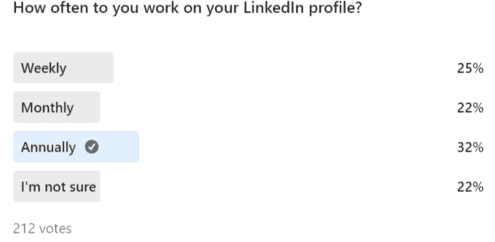
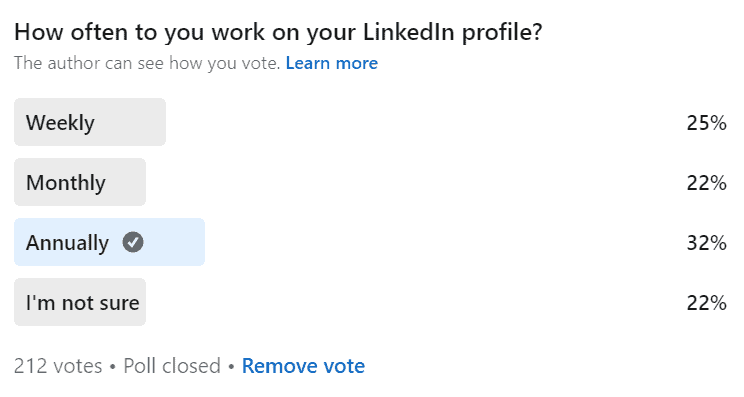
In 2021, Berkley ran a poll that revealed that 32% of job seekers update their LinkedIn profiles on an annual basis. Over the past year, LinkedIn has added many new features to their platform that you may not be aware of if you only log-in once a year. In this guide, we will walk you through these new features and their benefits. We will also share some new content types as well as three handy bonus hacks to help you improve your LinkedIn profile.
5 New & Useful LinkedIn Features to Try in 2021
1. Name Pronunciation
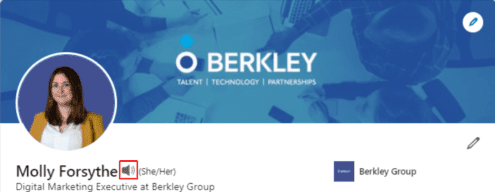
One way you can improve your LinkedIn profile is by recording your name pronunciation and displaying it on your page for others to hear. When you add this, a 🔊 icon will appear next to your name. Adding a recording will humanise your profile and help prevent any unfortunate mix-ups if you go for a job interview. Visit this page for a step-by-step guide on how to add a name pronunciation to your profile.
2. Personal Pronouns
Many people are adding their personal pronouns to their social bios in a show of support to the Trans community. As one source puts it, this action “tells everyone that you are not going to assume their gender.” Visit this page for a step-by-step guide on how to add personal pronouns to your profile.
3. Cover Story
A Cover Story is a short introductory video (with a max length of 30 seconds) that appears when users click on your profile picture. Profiles with a cover story will show an orange border around the profile picture.
The purpose behind these videos is to show the real human behind the profile by allowing users to provide more context about themselves, what they do and their goals.
Visit this page for a step-by-step guide on how to add a cover story to your profile. Please note that you can only record and upload a cover story using the most recent version of the LinkedIn mobile app.
4. Featured Posts
This feature allows you to display a selection of your posts on the top of your profile. This section is located toward the top of your profile between the About section and Activity section. This feature helps to boost your personal brand as it allows you to cherry-pick and showcase your best content. This could be a social media post that you are particularly proud of or an example of your work. For more advice on how to add a “Featured Posts” section, check out this guide.
5. Creator Mode
Creator Mode is designed to help content creators extend their reach on LinkedIn by giving their content more prominence on their profiles. When you activate Creator Mode you should notice the following changes:
Under your headline, there will be a list of content topics presented in hashtag format
There is an additional “+ Follow” call-to-action button
The “Activity” section will feature 6 rather than 3 posts
We recommend activating “Creator Mode” if you share a lot of original content on LinkedIn or if you regularly engage in the comments section of posts. Click here for a comprehensive guide on how to turn on Creator Mode.
Spruce Up Your LinkedIn Activity with These Trending Content Types
LinkedIn Polls
The Berkley company page has been running weekly polls for several months and they have proven to be a very effective way of driving engagement and visibility. Here are our top three tips for poll success:
Limit the response options. In our experience, simple yes/no polls do the best.
Use hashtags to boost visibility e.g. #polltime #polloftheweek #votenow #poll
Take inspiration from the news, holidays & recent/upcoming events
These have become very popular recently. I suspect that these posts perform well because they break up an otherwise image-heavy feed of content. Some examples of subjects you can write about include:
Sharing tips
Promoting hacks
A story about something that recently happened to you that illustrates a wider point
Sharing something you recently learned
LinkedIn Documents
Numerous studies have revealed that “Document” content generates strong engagement in the form of click-throughs. Documents are a useful way to repurpose powerpoints or PDFs that you think may be of interest to your audience.
Your LinkedIn profile is public and can be seen by anyone, so it’s important to make sure that your spelling and grammar are correct. Even the best writers can make mistakes, so it’s a good idea to download a reliable spellchecker. Our favourite is the Grammarly Chrome Extension. This free tool will proof your post as you write it on LinkedIn.
Hashtags
Including hashtags will help to boost the visibility of your posts. Why is this?
Your post will appear if someone searches for the hashtag on LinkedIn
Your post will appear if someone follows that hashtag
We recommend adding between 3 – 5 hashtags to each post. To find relevant hashtags, start typing a hashtag into your post and LinkedIn will automatically make suggestions.
Scheduling Posts
For today’s busy professionals, finding time to post on LinkedIn can be hard. Fortunately, you can automate your LinkedIn activity by signing up to a free social media scheduling tool such as Buffer or Hootsuite. These tools allow you to write your posts in advance and schedule publication for a later date. Social media automation is hugely convenient as it allows you to write your posts at a time that suits you, rather than having to log in to each network every day.
https://www.berkley-group.com/wp-content/uploads/2020/09/inlytics-linkedin-analytics-tool-RJT2EWPR0d0-unsplash-scaled-e1600686581988.jpg399494Robert Hawkeshttps://www.berkley-group.com/wp-content/uploads/2026/05/Berkley-Group-Logo-2026.svgRobert Hawkes2021-11-22 12:10:222021-11-22 14:12:54How To Improve Your LinkedIn Profile for 2022
Discover our top LinkedIn tips and tricks for job seekers in 2021. Follow our step-by-step guide to find out how to make your profile “recruiter-ready”.
As recruitment processes become increasingly digital, it’s essential for candidates to build visibility on popular online platforms. For jobseekers in 2021, a strong LinkedIn profile is an essential tool. This article provides a step-by-step guide on how to boost your online visibility and make your LinkedIn profile stand out to recruiters. Read on for more Linkedin profile tips and tricks for jobseekers today.
The Importance of Having a Strong LinkedIn Profile
At last count, there were just over two million Linkedin users in Ireland alone. In order to distinguish yourself in such a crowded space, it’s vital to ensure that your personal profile is complete and up-to-date. A 2016 report highlights that users with complete profiles are eighteen times more likely to be discovered in searches by recruiters and other members.
How to Optimise Your LinkedIn Profile: A Step-by-Step Guide
TOP TIP: Ideally, your profile picture should be 400 x 400 pixels and no larger than 8MB.
Research from LinkedIn reveals that simply having a picture makes your profile fourteen times more likely to be viewed by others. A good-quality photo not only gives your profile a human touch, but it also helps to instil trust and confidence in others.
✔️ DO
If you can, hire a professional photographer to ensure a high-quality headshot.
Wear the same clothes you would wear to a job interview. It’s best to stick to simple shapes and dark, block colours.
For a flattering, well-lit effect, take your somewhere with soft, natural light.
Try to keep the camera at eye level to give the impression of meeting your viewer on equal ground.
Ideally, your face should take up around 60% of the picture. To achieve this effect, crop from just above your head to your shoulders or to your waist.
Smile. Studies have shown that when we see a picture of a smiling person we are more likely to perceive them as being likeable, competent and influential.
Be conscious of your posture. Keep your back straight and relax your shoulders and hands.
Consider angling yourself 45° away from the camera. A slight angle tends to be more flattering than a straight-on “mugshot” style photo.
❌ DON’T
Avoid using small, low-resolution images.
Don’t take the photo yourself. Ask a friend to do it instead as they will be able to capture your best angles.
Don’t use an old picture or a group picture. Make it easy for others to recognise you.
Don’t take a picture of a picture (for example on your ID card). Take a fresh one instead.
Avoid distracting backgrounds. Opt instead for a plain backdrop with minimal visual clutter.
Don’t stand directly up against the background. Create depth by taking one or two steps away from your chosen background.
Free Infographic: The Ultimate Guide to LinkedIn Profile Pictures
TOP TIP: LinkedIn accepts PNG, JPEG or GIF files of up to 2 MB. The recommended dimensions are 1400 x 425 pixels.
Your cover photo is a background image that stretches across the full header of your profile. This is one of the first things that someone will see, so it’s vital to make the right impression. Your chosen image should reflect who you are as a professional so you should carefully consider what you want it to say about you. The image you choose could be used to strengthen your personal branding, to highlight your professional achievements, or it could showcase some of your work.
You can take the image yourself and edit it with a free online tool such as Canva or Adobe Spark. Alternatively, you can source a high-quality copyright-free image from a site such as Pixabay, Unsplash or Pexels.
Name
When adding your name, bear in mind that there is a maximum character limit of 60. Some people also insert keywords here to boost their search visibility, for example: “John Doe – Digital Marketing”. This year, a new feature was launched that allows users to upload an audio file that demonstrates how to pronounce their name.
Headline
TOP TIP: Your headline has a maximum character limit of 120.
One of our top LinkedIn profile tips for job seekers is to invest time into crafting a strong headline. Headlines are one of the most important LinkedIn search ranking factors. Invest time into crafting a catchy headline that includes some of your top keywords. Examples of keywords include industry or job-specific titles, skills, competencies, or credentials.
For unemployed job seekers, Cultivated Culture warns against using headlines such as “Seeking Opportunities,” “Looking For New Opportunities,” or “Currently Unemployed”: “No company or prospect is out there searching for people who are “seeking opportunities.” You’re wasting valuable space on keywords with no volume.”
5 Ways to Determine the Best LinkedIn Keywords for You:
Sit down and write a list of job titles and skills that are in high-demand within your industry.
Look up job postings in your field and note the most frequently used terms and phrases.
Navigate to the skills section on your profile and type in a skill or job function. LinkedIn will automatically generate a drop-down list of potentially relevant skills that may double up as keywords.
Check out the profiles of the top-ranked individuals in your field and note down the keywords they use.
Search for a keyword on Google and scroll down to the “Searches related to…” section.
Free Infographic: How to Optimise Your LinkedIn Profile for Search [Infographic]
TOP TIP: Your summary has a maximum limit of 2,000 characters or 300-350 words.
Writing a personal summary may seem quite daunting but it’s important not to leave it blank. Your summary is a chance to get your unique voice across, boost your search visibility and to contextualise the information in your profile.
By default, users can only see the first three lines of your summary. Try to entice the reader to click the “see more” button by writing a captivating opening statement that conveys the most critical information about you.
To enhance the readability of your profile, it’s best to use short sentences and to separate out your points with paragraphs and bullet points. You can also make your summary stand out by using special characters. Ensure that your summary is peppered with keywords.
5 Things to Include in your LinkedIn Summary:
Share your accomplishments – use hard data and examples to illustrate these if you can.
Emphasise how your skillset can add value to a potential employer’s organisation.
Describe your passions, values and professional goals.
Include a “call to action” that invites the reader to connect.
Add attachments (e.g. PDFs, videos, images) such as certificates, portfolio pieces, awards, references or case studies.
Experience
TOP TIP: Each job within the experience section has a maximum limit of 2,000 characters or 300-350 words.
The experience section on your LinkedIn profile should complement your CV. Whereas your CV will be tailored to each job you apply for, your experience section will need to be more generalised so that you avoid pigeonholing yourself. Be sure to use action words such as “managed, directed, grew, saved” etc. Each job listing should include your responsibilities, achievements and skills used. You can back these up by attaching relevant media such as images, presentations or PDFs. Add further credibility by linking the posting to the relevant company page.
Education
In this section, you need to include a summary of any completed education along with a list of your qualifications. You should fill this section even if you feel that this information is no longer relevant to your career. Many recruiters exclude candidates who do not meet the minimum educational level for a role, so if your degree isn’t mentioned, then you won’t show up in their search results. The education section also provides an opportunity for less experienced candidates to highlight the skills, achievements and experiences that they developed in school or university.
Skills
TOP TIP: You can add up to 50 skills.
People who list a minimum of five skills receive up to seventeen times more profile views. It’s important to review this section occasionally to make sure that it is up-to-date and in-line with the latest trends in your industry. Viewers can only see the top three skills, so you need to choose these carefully. There are two ways you can validate your skills section:
Endorsements: You can validate your skills by asking people in your network to “endorse” you. This is also a great way to build your network and engage with your connections.
Skills Assessments: Last year, a new feature was launched that allows users to take a skills test. The aim of this is to verify their skills and demonstrate their proficiency. LinkedIn claims that candidates who complete these assessments are 30% more likely to get hired.
The accomplishments section allows you to add extra colour to your profile and demonstrate a commitment to ongoing self-development. It features multiple sub-sections including:
Publications
Certifications
Courses
Projects
Honours & Awards
Patents
Test Scores
Languages
Organizations
Recommendations
Data shows that people with recommendations are three times more likely to be contacted than those without. Recommendations add legitimacy to your profile and can bolster your online reputation. The best time to request a recommendation is immediately after leaving a position. However, it is perfectly fine to reach out to old managers and colleagues a few years later and to use it as an opportunity to reconnect. For best results, take time to personalise each request.
Who Should You Approach for Recommendations?
Ex-managers
Team leads
Co-workers
Clients / customers
Custom URL
One of our top LinkedIn profile tips is to create your own custom URL. Shorter and more memorable than the automatically-generated URLs, these custom URLs are far easier to share across your CVs, cover letters, business cards, email signature and social media accounts.
Let Recruiters Know You’re Open
Once you are happy with your profile, we recommend turning on the “Open Candidates” feature. Those already in a job will be happy to know that this is a highly discreet feature and is not visible to your existing employer. If you use this tool, LinkedIn will:
Let recruiters know that you are interested in hearing about new opportunities
Share job titles or roles that you’ve indicated an interest in
Let recruiters know if you’re open to full-time or contracted positions
Share the date you turned on “Open Candidates”
Achieving “All-Star” Status
To help you perfect your profile, LinkedIn uses statuses to gauge your profile strength. There are five different status levels – Beginner, Intermediate, Advanced, Expert and All-Star. To get the highest “All-Star” rating, you need to:
Add your industry and location
Upload a profile picture
Write a summary
Add your current position to the “experience” section along with two past positions
Fill in the “Education” section
Add at least of three skills
Connect with at least 50 people
Contact Us for More Top LinkedIn Profile Tips & Tricks for Job Seekers
If you are looking for a role, please talk to one of our expert consultants today. We would be happy to share more top LinkedIn tips and tricks with you. Alternatively, you can find additional advice in our guide “How To Improve Your LinkedIn Profile for 2022“.
Need to update your LinkedIn profile picture? Check out this infographic for a comprehensive guide on how to take a professional image that reflects your personal brand. This infographic takes you through the do’s and don’ts of taking a photo for LinkedIn. It also gives a handy overview of the technical specs you need to be aware of and recommends some useful tools. For additional advice, why not check out our guide “How To Improve Your LinkedIn Profile for 2022.”
LinkedIn’s search function is an essential tool for recruiters and employers seeking candidates in 2020. The below infographic offers practical advice on how to ensure that you appear at the top of their search results and offers a jargon-free introduction into the world of Search Engine Optimisation (SEO). For more tips and tricks, take a look at our guide “How To Improve Your LinkedIn Profile for 2022“.
https://www.berkley-group.com/wp-content/uploads/2020/09/inlytics-linkedin-analytics-tool-RJT2EWPR0d0-unsplash-scaled-e1600686581988.jpg399494Robert Hawkeshttps://www.berkley-group.com/wp-content/uploads/2026/05/Berkley-Group-Logo-2026.svgRobert Hawkes2020-09-01 10:19:142021-11-22 14:15:47How to Optimise Your LinkedIn Profile for Search [Infographic]
We may request cookies to be set on your device. We use cookies to let us know when you visit our websites, how you interact with us, to enrich your user experience, and to customize your relationship with our website.
Click on the different category headings to find out more. You can also change some of your preferences. Note that blocking some types of cookies may impact your experience on our websites and the services we are able to offer.
Essential Website Cookies
These cookies are strictly necessary to provide you with services available through our website and to use some of its features.
Because these cookies are strictly necessary to deliver the website, refuseing them will have impact how our site functions. You always can block or delete cookies by changing your browser settings and force blocking all cookies on this website. But this will always prompt you to accept/refuse cookies when revisiting our site.
We fully respect if you want to refuse cookies but to avoid asking you again and again kindly allow us to store a cookie for that. You are free to opt out any time or opt in for other cookies to get a better experience. If you refuse cookies we will remove all set cookies in our domain.
We provide you with a list of stored cookies on your computer in our domain so you can check what we stored. Due to security reasons we are not able to show or modify cookies from other domains. You can check these in your browser security settings.
Google Analytics Cookies
These cookies collect information that is used either in aggregate form to help us understand how our website is being used or how effective our marketing campaigns are, or to help us customize our website and application for you in order to enhance your experience.
If you do not want that we track your visit to our site you can disable tracking in your browser here:
Other external services
We also use different external services like Google Webfonts, Google Maps, and external Video providers. Since these providers may collect personal data like your IP address we allow you to block them here. Please be aware that this might heavily reduce the functionality and appearance of our site. Changes will take effect once you reload the page.
Google Webfont Settings:
Google Map Settings:
Google reCaptcha Settings:
Vimeo and Youtube video embeds:
Privacy Policy
You can read about our cookies and privacy settings in detail on our Privacy Policy Page.




![How to Optimise Your LinkedIn Profile for Search [Infographic]](https://www.berkley-group.com/wp-content/uploads/2020/09/Infographic_-LinkedIn-SEO-v2-scaled.jpg)